
As an Amazon Associate, we earn from qualifying purchases.
If you are wondering what fun things to do on an iPad, this post is for you. With numerous improvements, iPads have become one of the most sought-after companions for work, gaming, drawing, and countless other tasks.
Their powerful specifications, versatile design, and extensive software ecosystem make them an excellent blend of creativity, entertainment, and productivity for users.
Whether you’re looking to stream videos or movies, start learning a new skill, or explore your artistic side, the iPad has you covered.
In this post, we will explore the various things you can do with your iPad tablet. Whether you choose a premium-level iPad or a budget-friendly alternative, the capabilities are similar across models.
Fun Things to Do on an iPad
What you can do with your iPad depends on your interests and intentions. Below, we’ve categorized the top uses into large themes. Each category can be further broken down into specific activities.
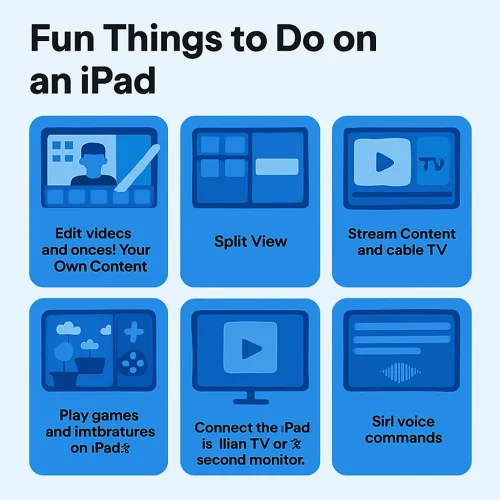
- Siri voice commands
- Split View for Multitasking
- Edit videos and Create Your Own Content
- Virtual Touchpad for easy navigation
- Stream Content and cable TV
- Play games and Adventures on iPads
- Connect the iPad to Your TV or as a second monitor
- Printing from an iPad to printer
Split View for Multitasking
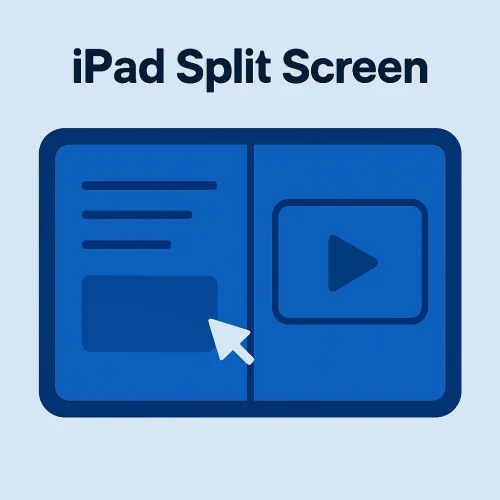
New iPads allow split-screen view, which allows you to run two applications at the same time. The slide-over option keeps the active application floating on one side of the screen. You can set video playback, gaming, editing, or FaceTime windows to use other apps at the same time.
This Picture-in‑Picture mode is effective, but if you use the new iPadOS 16+, it is possible to use Stage Manager for flexible window layouts.
Edit videos and create your own content.
The iPad is a fantastic tool for professional and beginner digital artists. Its high-quality display and reliable stylus, like the Apple Pencil, are ideal for both drawing and animation work.
Additionally, the iPad is compatible with apps like Photoshop, Procreate, and Adobe Fresco, which transform your device into a portable art studio. With these apps, you can experiment with different brushes, textures, and colors, making them perfect for sketching, painting, and creating unique artwork.
For those interested in writing or journaling, iPads work seamlessly with apps like GoodNotes and Notion. These tools allow you to jot down ideas, craft stories, or organize bullet journals with customizable templates. An iPad is perfect for turning scattered thoughts into polished content.
Music enthusiasts can use apps like GarageBand, sheet music software, and pro tools like FL Studio for music composition. Apps like Simply Piano make learning to play various instruments easier and more enjoyable.
With the new iPad OS versions, you will get a free copy of iMovie for creating and editing videos. The application comes with free templates and music transition templates for easy editing.
Virtual Touchpad for easy navigation
If you are learning on your iPad, you can use a touchpad like on a laptop for easy navigation. This will give you flexible cursor control when typing. Simply open the on‑screen keyboard, hold two fingers over it, and drag exactly where you want.
The iPad is a top choice for students and lifelong learners. Apps like Khan Academy and Duolingo turn education into a fun and interactive experience. With an intuitive interface and reliable performance, learning feels seamless.
For book lovers, Kindle and audiobook platforms like Audible provide endless reading and listening options. Whether you prefer eBooks or audiobooks, the iPad’s versatility allows you to switch formats effortlessly.
You can also take online courses through platforms like Udemy, Coursera, and Skillshare. These offer professional training in various fields, from graphic design to photography and coding, right from your iPad.
Stream content and cable TV.
The iPad’s high-resolution screen and effortless connectivity provide easy access to streaming platforms like Netflix, Hulu, and Disney+. Turn your iPad into a portable cinema and enjoy your favorite films and shows on the go.
The Liquid Retina display ensures a premium and immersive viewing experience, bringing vibrant colors and sharp details to life.
For fans of online videos and creators, the iPad is perfect for apps like YouTube, TikTok, and Twitch. Whether watching tutorials or interacting with live streams, the iPad’s size and quality enhance every moment.
You can also watch your favorite TV stations on iPads. To do this, you can use Sling TV, which is an internet TV, and the Sling Player. It allows you to stream various TV channels. To do this, you need an iPadOS 13 or higher.
For those with a Smart or Apple TV, choose your favorite channel apps from the App Store. You might need to contact cable TV providers, but once set up, you are good to go.
Play games and adventures on iPads.
Whether you prefer casual games or multiplayer experiences, the App Store offers a variety of exciting titles. Games like Monument Valley and Stardew Valley are perfect for relaxing and sharpening your cognitive skills.
For multiplayer enthusiasts, the iPad’s large screen and high refresh rates (up to 120 Hz) create an immersive gaming experience. Popular games like Fortnite and PUBG Mobile shine on the iPad, with superior graphics and audio enhancing gameplay.
For advanced gaming, Apple Arcade offers an ad-free subscription service with exclusive titles. It’s an excellent option for exploring premium games with unique features and gameplay.
Connect the iPad to your TV or as a second monitor.
When using iPadOS 13 and above, it is possible to connect the iPad to your TV or as a second monitor for a better user and viewing experience. To use an iPad as a second monitor, you can use Apple Sidecar. You can also connect to a TV screen using different iPad connectivity options.
How to Print from Your iPad
- Open the relevant application to print from
- Find the print, share, or actions button.
- Choose Print and choose a connected printer.
- Set the printing specifications, like paper size and copies.
- Hit Print on the top right corner of your screen.
iPad Tricks Quick Cheat Sheet
If you are using your iPad for typing and taking notes, understanding how the iPad Clipboard works will help improve your overall experience. However, for students, you will notice the obvious lack of a calculator on your iPad tablets.
Frequently Asked Questions
Can I use any iPad for these activities?
Yes, most iPads can handle these activities. However, for tasks like drawing or gaming, an iPad with Apple Pencil support and a powerful processor is recommended for the best experience.
What apps are best for drawing and creative work?
Procreate and Adobe Fresco are top-rated apps for digital art, while Affinity Designer and Adobe Photoshop are excellent for graphic design.
Are there any subscription services for eBooks and audiobooks?
Yes, platforms like Apple Books, Kindle Unlimited, and Audible offer extensive collections of eBooks and audiobooks, often with subscription plans.
Can I connect an external controller for gaming on the iPad?
Yes, many games on the App Store support external controllers, giving you a console-like gaming experience.
What’s the best way to edit videos on an iPad?
Apps like iMovie and LumaFusion are highly recommended for video editing. They offer a wide range of features to create high-quality videos easily.
How can you connect an iPad to a printer without AirPrint?
You can either download the printer’s app e.g., HP Smart or Canon PRINT from the App Store. After that, follow the app’s setup process and print.
Alternatively, you can use apps like Printer Pro or PrintCentral for advanced settings. If Google Cloud Print is supported, set it up via Chrome and print using your Google account. Finally, you can use USB printing. For compatible printers, use a Lightning-to-USB adapter to connect your iPad directly to the printer.How can you add a printer to an iPad with AirPrint?
Ensure your printer supports AirPrint and is on the same Wi-Fi network as your iPad.
Open the file or app (e.g., Mail or Safari), tap the Share button, choose Print, and select your printer.