
As an Amazon Associate, we earn from qualifying purchases.
Taking a screenshot on an iPad Mini is quick once you know the right method for your model. Newer iPad Mini tablets don’t have a Home button, while older versions do, and each uses a different shortcut.
In this guide, you’ll learn 6 reliable ways to screenshot on an iPad Mini, including what to do if the buttons don’t work and how to use Siri or accessibility features instead.
Apple iPads are some of the best tablets in many expert fields. In this article, I will show you 6 ways you can screenshot on iPad Mini tablets. Below is a quick overview of the easiest way. For more, subscribe to our channel.
Click the top power and volume up keys at the same time. If your iPad has a Home key, press it together with the Sleep/Wake key on top. You will notice a thumbnail of the screenshot in the top right corner. Click on it to open and view your image, or swipe it to the left to dismiss it.
What You will Learn in This Guide
- How to take a screenshot on an iPad Mini with or without a Home button
- The fastest button combinations for all iPad Mini models
- How to use Siri to take screenshots hands-free
- How to enable AssistiveTouch for one-tap or double-tap screenshots
- Where screenshots are saved on iPad Mini and how to edit them
- How screenshot methods differ on Samsung Galaxy tablets (Android alternative)
Methods to Take a Screenshot on iPad Mini
- Using Buttons Physical Buttons
- Using Siri
Using Buttons Physical Buttons
This is the easiest way you can screenshot on your iPad. The method you will apply depends on whether your iPad has a Home button or not. Older iPad models have a home button, while newer versions do not.
How to Screenshot on iPad Mini with a Home Button (Older Models)
Step 1: Find the Home button, usually a circular button below the screen.
Step 2: Find the power button on the upper-right side of your iPad.
Step 3: Press and hold the Power button and the Home button at the same time, then quickly release them. If sound is enabled, the screen will flash and you’ll hear a camera shutter sound.
Step 4: The screenshot will appear as a thumbnail in the bottom-left corner. Tap it to edit or swipe it away to save automatically.
Screenshot on iPad Mini without a Home Button (New Models)
Step 1: Find the power button on the upper-right side.
Step 2: Find the Volume Up or Volume Down button on the side.
Step 3: Press and hold the Power button and Volume Up button simultaneously, then release both buttons quickly.
Step 4: The screen will flash, and you’ll hear a shutter sound. A thumbnail will appear at the bottom-left corner of the screen.
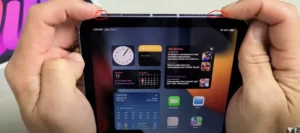
Another way is to do the same thing but with the volume up button instead of the volume down button.
Using Siri
The easiest way you can take a screenshot is by using the Siri voice command. Just say, ”Hey Siri.” The below icon opens up to show Siri is listening.
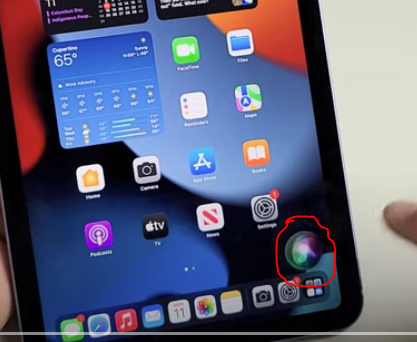
Hey Siri, take a screenshot. That’s it. Siri takes a screenshot and saves it. If you cannot open up Siri, just press and hold a little on the power button, and Siri will open up, ready for a command.
Screenshot on iPad mini using settings
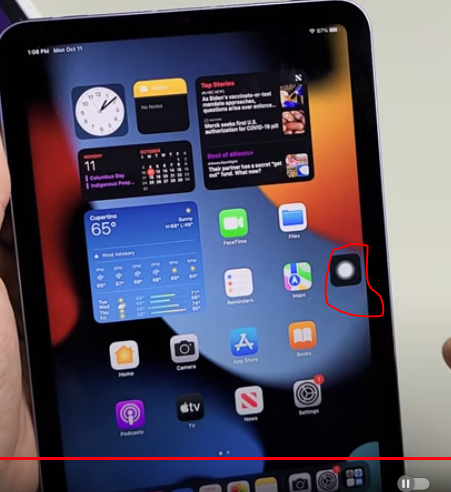
You can also take a screenshot by creating a shortcut for it. Go to Settings, then Accessibility, choose Assistive Touch, and toggle on Assistive Touch. Toggle the assistive touch on and click on double tap to set a screenshot from the drop-down menu.
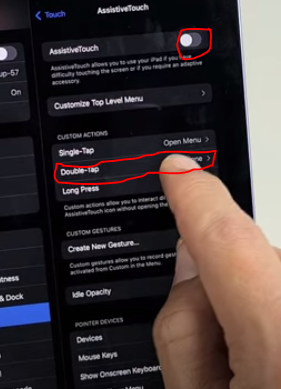
Now go back home and double-click here to take a screenshot. You can also set a custom long press to take a screenshot. Just go back to the accessibility settings and choose long-press instead of double-tap. Choose a screenshot from the drop-down menu.
How do I take a screenshot on an iPhone?
To take a screenshot on an iPhone, it is quite similar; just press the Home button and Power button at the same time.

Just like on the iPad Mini, the file is saved in your photos folder.
How do I take a screenshot on an Apple Watch?
If you are using an Apple Watch and want to take a screenshot, just follow these easy steps. You can either use your watch app on your iPad or iPhone and follow the same steps. Go to the app page, then choose settings.
Choose General, then scroll down to where it says screenshots. Then select. Make sure Enable Screenshots is toggled on.
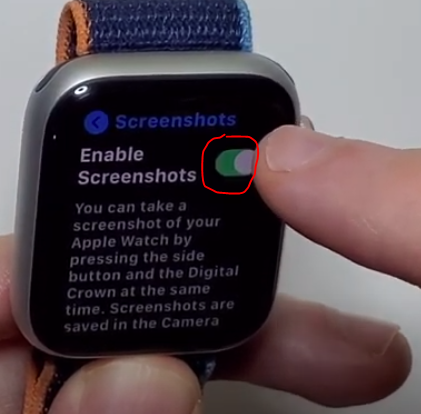
Press the crown and side buttons to take a screenshot. You do not have to press for long, just quickly. To get your screenshot, take your iPhone and go to Albums, and it will be saved there.

Screenshot on iPad using the home button
If you are using an older iPad tablet, the process of taking a screenshot is a little complicated. For starters, you will need both hands for the process. The method is effective for iPad 2021 or before.
- Step 1: Open the page you want to screenshot so that you can view it on your screen.
- Step 2: Hold down the Home Key and the top right key on the side of your iPad. Make sure you press them simultaneously. Hold them down until the iPad screen flashes and makes a shutter-click-like sound. The screenshot file is at the bottom left corner.
- Step 3: The screenshot image is saved in the Photo Library folder.
How to Take a Screenshot on a Samsung Galaxy Tablet (Android Alternative)
If you’re using an Android device instead, Samsung Galaxy tablets offer multiple ways to take a screenshot. Models such as the Galaxy Tab A7, A8, A9, A9+, and S6 Lite allow screenshots using the power and volume button combination, palm swipe gestures, the S Pen, or the quick panel menu.
These methods are quick to use and work across most Samsung tablet versions. If screenshots don’t work, common fixes include enabling palm swipe gestures in settings, checking button functionality, or using the S Pen screen write feature.
Frequently Asked Questions
How do I screenshot on my iPad?
To take a screenshot on iPad Mini, press the Power and then the Home button simultaneously.
How can you screenshot on an iPad with your fingers?
1. Go to Settings, then Multitasking & Gestures.
2. Swipe Finger from the iPad screen corner
3. Select screenshot
4. Tap on the bottom corner, either on the right or left sideHow do I take screenshots on an iPad without buttons?
It is possible to take a screenshot on an iPad without using buttons. Navigate to Settings, then Accessibility, Touch, and turn Assistive Touch on. Double-tap to customize settings to take screenshots. You will notice a home button on the screen’s right side.
Can you screenshot on an iPad with a keyboard?
Yes, you can. On the keyboard, click Command-Shift-3 to screenshot. To edit your photo, go to Mark Up by clicking Command-Option-D on your tablet keyboard.
How can you screenshot on an iPad using the Home key?
Open the page you want to screenshot. Hold down the Home key and the top right key on the side of your iPad. Make sure you press them simultaneously.
Hold them down until the iPad screen flashes and makes a shutter-click-like sound. The screenshot file is at the bottom left corner.
The screenshot image is saved in the Photo Library folder.