
As an Amazon Associate, we earn from qualifying purchases.
In this post I will show you how you can create a silhouette from an image. You can make a silhouette for different characters like animals, people, plants, icons, and more.
What are silhouettes?
A silhouette is essentially a dark, solid shape that represents the outline of a subject without showing any internal details. Imagine bright light or sunset hitting an image from the back, and it casts a dark shadow on your view. You will not view the details like color, clothing, or texture, only a dark solid outline of the object. That simplified, shadow-like form you see is referred to as a silhouette.
Silhouettes contrast with their backgrounds, being dark and having light backgrounds, resulting in a dramatic, instantly recognizable effect. They are also simple, relying purely on shapes with no shading, no gradients, no textures, or colors.
Simplicity and contrast are some of the main reasons silhouettes are used for design and storytelling.
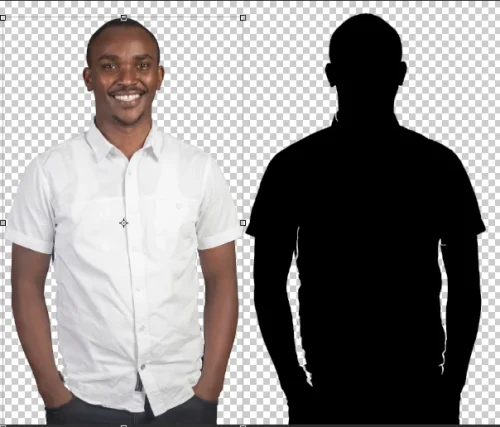
What you can use to create a silhouette
In this guide, we will use Photoshop, Adobe Illustrator, and AI tools, that is, NANO BANANA PRO and Microsoft Copilot.
- Method 1: Creating a Silhouette Using Photoshop
- Method 2: Creating a Silhouette Using Illustrator
- Method 3: NANO BANANA PRO
- Method 4: Microsoft Copilot
Method 1: Creating a Silhouette Using Photoshop
Step 1: Go to File>Open and choose the image to convert.
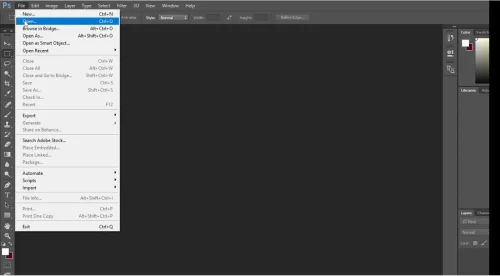
Step 2: Right-click on the locked layer and choose rasterize layer.
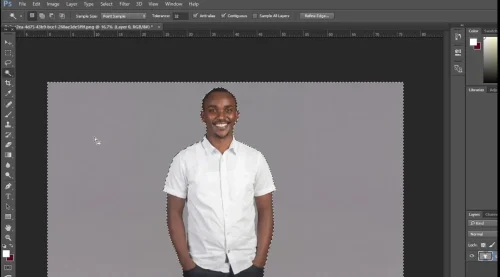
Step 3: Use the magic wand and choose the color background, then hit delete.
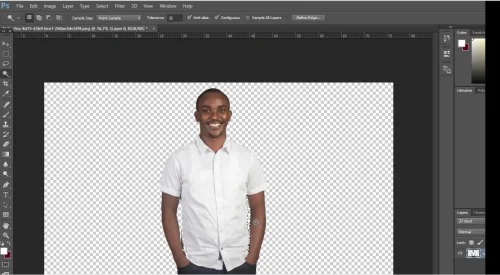
Step 4: Control-click on your mouse on the subject layer.
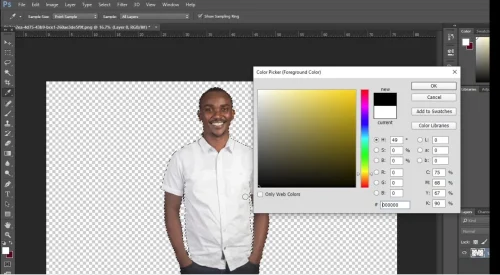
Step 5: Click on the fill color and choose the black color.
Step 6: Hit X to swap the foreground color.
Step 7: Control + Backspace to fill the image with black color
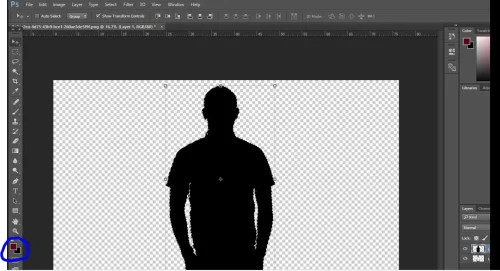
Method 2: Creating a Silhouette Using Illustrator
Step 1: Go to File Open and choose the image or copy and paste it.
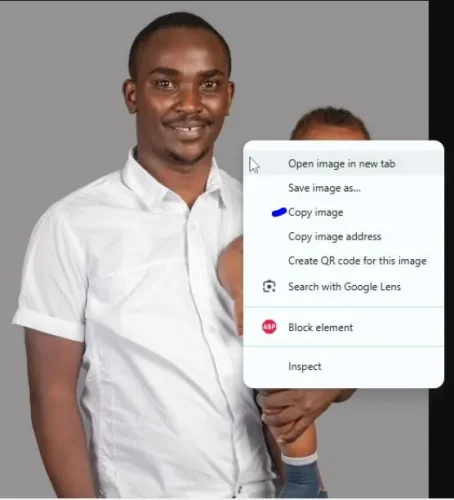
Step 2: Go to Image Trace > 6 Colors.
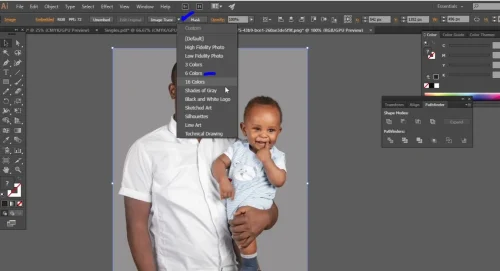
Step 3: Use the direct selection tool shortcut (A). Select the background color and hit delete until only the subject remains.
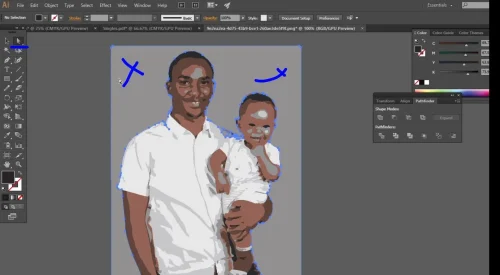
Step 4: Select the image, now in vector format.
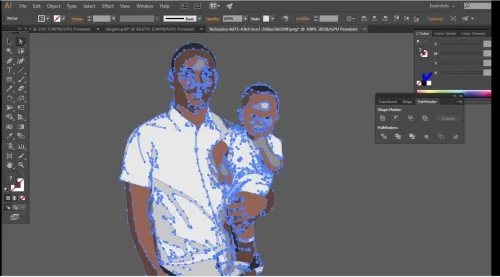
Step 5: Go to Window>Color and choose black.
Step 6: Use the pen tool to draw areas with errors.
Method 3: NANO BANANA PRO and Microsoft Copilot
Go to Microsoft Copilot and upload the image. Copy this prompt, then hit enter.
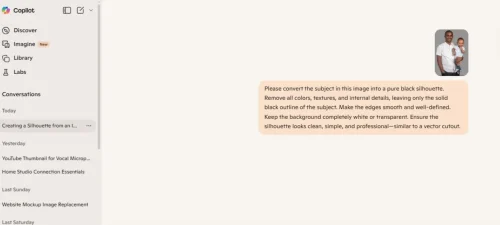
Prompt: “Turn this image into a clean black silhouette. Remove all interior details and convert the subject into a solid black shape with sharp, smooth edges. Keep the background solid white or transparent. Preserve the outline accurately and eliminate shadows, textures, and colors. The final result should look like a crisp vector-style silhouette.”
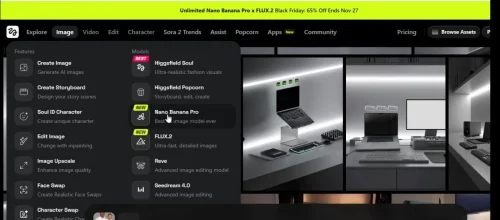
For NANO BANANA PRO, go to higgsfield. Choose image>Nano Banana Pro. Paste or upload the image. Type this prompt: Create a silhouette from the image attached.
Steps How to create a silhouette in Photoshop
- Open your image:
File > Openand select your photo. - Rasterize the layer: Right-click the locked layer >
Rasterize Layer. - Remove the background: Use the Magic Wand tool to select the background and press
Delete. - Select the subject:
Control + Clickon the subject layer. - Fill the subject with black: Press
Xto swap foreground/background colors, thenControl + Backspace
Conclusion
Creating a silhouette from an image is a simple yet powerful way to emphasize shapes and forms while removing unnecessary details.
Whether you use Photoshop, Illustrator, or AI tools like NANO BANANA PRO and Microsoft Copilot, the process allows you to transform photos of people, animals, plants, or objects into clean, striking silhouettes.
By focusing on outlines and contrast, silhouettes enhance visual storytelling and design, making your images instantly recognizable and impactful.
Frequently Asked Questions
What is a silhouette?
A silhouette is a solid, dark shape representing the outline of a subject without internal details. It highlights the subject’s shape and form.
Why doe designers use silhouettes?
Silhouettes are simple, striking, and easily recognizable, making them useful for logos, art, and designWhich tools an you use to create a Silhouette?
Method 1: Creating a Silhouette Using Photoshop
Method 2: Creating a Silhouette Using Illustrator
Method 3: NANO BANANA PRO
Method 4: Microsoft CopilotWhat elements can you create with a Silhouette?
Using Silhouettes, you can create, People, animals, plants, objects, icons, or any recognizable shape can be turned into a silhouette.