
As an Amazon Associate, we earn from qualifying purchases.
If you want to cut out an image in Illustrator or isolate part of the image, the easiest way you can do this is by creating a clipping mask around the parts you need to view. Below are the steps to follow.
Which tool is used to Cut Out an Image in Illustrator?
For the first method, we will be using the clipping mask effect to cut out unwanted areas. It is not a specific tool but can be achieved by correctly and strategically applying differen tools. We will use the Selection Tool (V), Pen Tool (P), Direct Selection Tool (A), Shape Tools and Clipping Mask shortcuts, that is Control+7 / CMD+7).
This is not the only method you can use. The second method explains cutting an image Two Parts with the Scissors Tool.
Quick Summary: How to Cut Out an Image in Illustrator
Method 1 – Clipping Mask
- Import & lock the image.
- Draw a path/shape around the area to keep (Pen Tool, Shape Tools).
- Unlock the image.
- Select both image & path → Apply Clipping Mask (Ctrl+7 / Cmd+7).
- Edit if needed, export as PNG for transparency.
Method 2 – Scissors Tool
- Select the object.
- Use Scissors Tool (C) to click two points on the path.
- Separate or delete the unwanted section.
How do you cut out an object in Illustrator?
- Step 1: Import the image to Illustrator
- Step 2: Lock the image
- Step 3: Create a Path
- Step 4: Unlock the image
- Step 5: Create Clipping Mask
- Step 6: Edit the Clipping Mask
- Step 7: Export image with a clear background
Step 1: Import the image to Illustrator. Go to File>New and set size to create an artboard. Go to File>Place and navigate to where the image is saved. Alternatively, go File>Open then choose the image you want to edit.

Step 2: Lock the image. Select the image by clicking on it using the selection tool V. Click on shortcut keys Control+2 on PC or CMD+2 on Mac to lock the image. You can also go to Object>Lock>Selection.

Step 3: Create a Path. Use the Pen tool (P) to create a path around the area to cut out. Set fill to none and a thin stroke in a bright color. You have to know how to use the pen tool to do this.

You can fine-tune the shape using the Direct Selection Tool (A) tool and adjust anchor points and handles. If the cut out is a regular shape, just create the shape using the shape tools like ellipse, rectangles or any other.
Step 4: Unlock the image. You will notice the image is not selectable since it is locked. Click on shortcut keys Control+Alt+2 on PC or CMD+Opt+2 on Mac to unlock the image. You can also go to Object>UnLock All.

Step 5: Make Clipping Mask. Select the image and shape created by clicking Control+A on PC and CMD+A on MAC. Click Control+7 or CMD+7on MAC.
You can also click Object>Clipping Mask>Make or Right-click and choose Make Clipping Mask. The areas covered by the shape are visible and those not are blocked out.
Step 6: Edit the Clipping Mask. To edit it, simply double click and drag the image or shape to the best position. You can also use the Direct Selection Tool to move points.

Step 7: Export with Transparent Background. Make sure the cut out image is on an artboard with no background. Go to File > Export > Export for Screens or Export As, choose PNG for transparent background. Make sure Use Artboards is checked if you want to limit export to the artboard.
Cut Out an Object in Illustrator the Scissors Tool
Step 1: Pick the selection tool and choose the object or image.

Step 2: Pick the Scissors Tool (c)
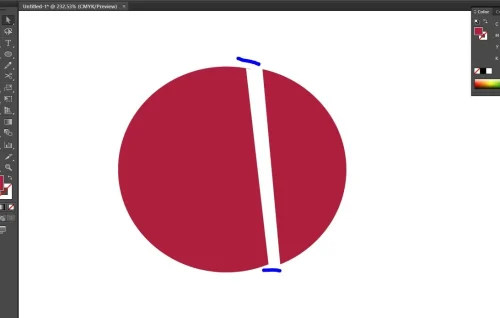
Step 3: Put the Scissors Tool tip along the path on the object you want to cut. By clicking you select the area to start splitting.
If you want toresize or flip the image you have removed the background, Illustrator is a perfect option.
Frequently Asked Questions
Is there any difference between Clipping Masks and the Scissors Tool in Illustrator?
A clipping mask is not a specific tool. It hides sections of the object, leaving only the ones you want to keep. It displays as per the top shape, but both shapes remain intact, and you can go back by releasing the clipping mask or shortcutControl+Alt+7. The Scissors Tool is a specific tool that actively cuts the path or shape you click.