
As an Amazon Associate, we earn from qualifying purchases.
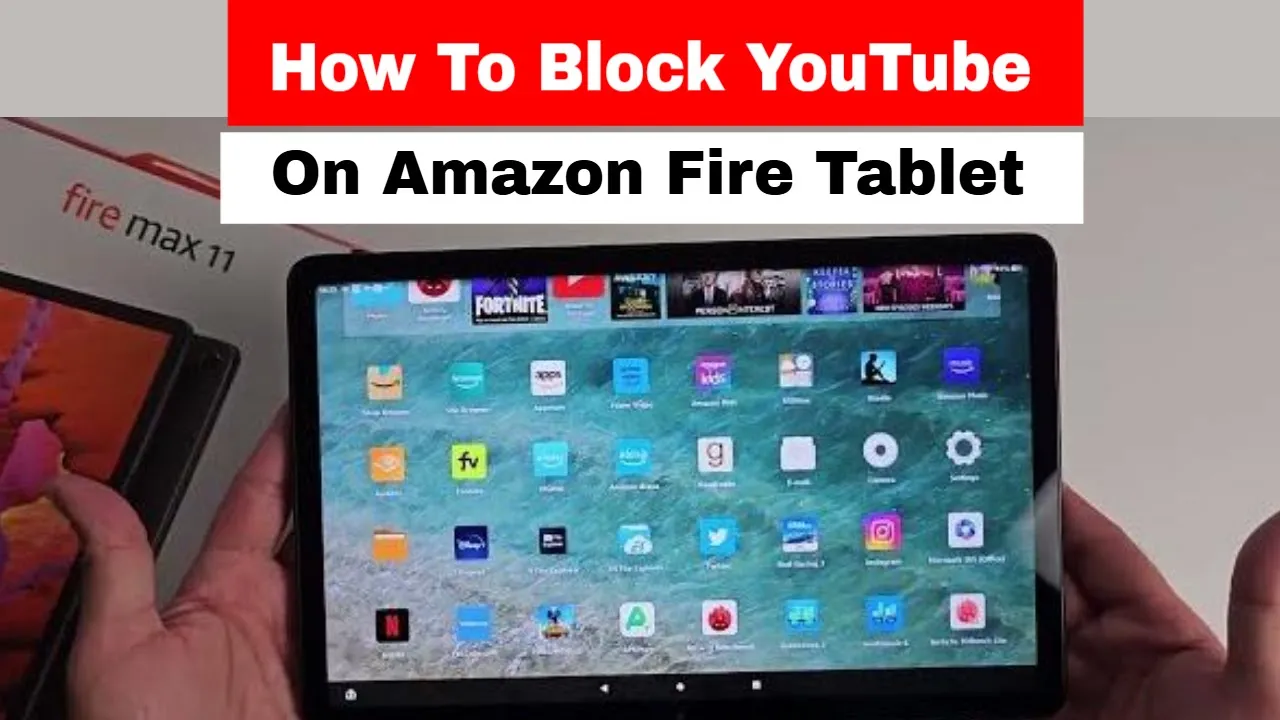
In this post you will learn how to block YouTube on Amazon Fire Tablets. This will involve both blocking it on the YouTube app and the YouTube website. If you do not do both functions, it will still be possible to access YouTube on your tablet web browser.
To block on both, navigate to Settings > Parental Controls and toggle the button appearing. It will prompt you to set a password. Once set, your child or anyone will not access it without access to the password or
To disable on the browser level, choose Apps & Games and select Web Browser. Choose the block them option. Now go back and toggle on Password Protection. The above is a quick overview of what to do. If you are interested in the full step-by-step guide, read on.
Blocking the Amazon App Store
Your child can just reinstall the application. To ensure this does not happen, block the Amazon Store App as well. Go to Settings, choose Parental Controls’ and toggle to disable the Amazon Appstore. With this set, any app downloads will require your permission.
Alternatively, you can add Curfew or Time-Based Controls. This is done by adding time controls on the built-in parental controls. To do this, select the Set time limits option after going to parental controls. You will be able to define hours when app restrictions are active. You can therefore control your child’s screen access hours.
Once you block applications, the Fire tablet auto-hides preloaded apps from your quick access home screen. You will first hide the web browser and App Store. If they are not auto-hidden after blocking them, you will need to do it manually. Navigate to Settings, then Apps & Notifications, and choose Disable.
Controls by using an Amazon Kids profile.
You can also effect controls from the profile center. To set up the Amazon Kids+ profile, choose Profiles and Family Library, then add a child profile. You then need to customize applications accessed by the profile you have just created. Ensure applications like YouTube are filtered out.

Steps to Block YouTube on an Amazon Fire Tablet
- Open settings on your tablet.
- Choose Parental Controls and toggle on.
- Choose a password that you will remember because you need to have it to adjust controls in the future.
- Go to Amazon Apps and Games. Parental Controls > Apps & Games. When you click on it, it changes status to blocked.
- Set the browser option below to blocked as well.
- If you want the tablet to require a password when downloading YouTube or any files, click Password Protection.
- It will prompt you to enter the password you created to confirm the changes.
- When you go back to the home screen, you will notice the applications you blocked are not visible.
- You can customize the hours that the tablet requires a password and when it does not.
Step 1: Access Parental Controls by going to Settings>Parental Controls. Toggle the parental controls switch.
Step 2: After that, input your password.
Step 3: Configure Amazon Content and Applications

Step 3: Configure Amazon Content and Applications
Step 4: Block Applications
Step 5: Block the Web Browser
Step 6: Set Up Password Protection
Step 7: Set specific time restrictions.
Step 8: Save Your Settings

These apps allow you to set time limits and schedules for app usage, helping you control your child’s access to YouTube and other applications. These steps will ensure safer and controlled tablet usage by minors.
How to Restrict YouTube Using 3rd-Party Apps
If you want to restrict YouTube on an Amazon Fire tablet using a third-party application, we recommend Amazon FreeTime as the best.
Amazon FreeTime is a powerful app designed specifically for parents to manage their child’s digital experience on Amazon Fire Tablets.
This app allows you to create profiles for each child, set time limits, and control access to specific apps and content, including YouTube. Here’s how you can restrict YouTube access through the Amazon FreeTime app:
- Install the Amazon FreeTime app from the Amazon App Store.
- Launch the app and set up profiles for each child.
- Tap on the child’s profile and select Add Content.
- Choose Videos & Web and toggle off the Access to Web Browser & YouTube option.
By disabling access to YouTube through the Amazon FreeTime app, you can ensure that your child can only access videos and content that are appropriate for their age.
Can You Get YouTube App on Fire Tablet?

Fire tablets do not come with either Google Play or YouTube installed. Many users are not sure whether the two applications can be installed and used on Fire Tablets. Below are steps you can follow to get started with the Play Store and later install the YouTube app.
- Enable Unknown Sources application installation by going to Settings > Security and Privacy > Enable Apps from Unknown Sources.
- Ensure that the Silk Browser is permitted under Applications from Unknown Sources.
- Using the Silk Browser, search and download these APK files in order: Google Account Manager, Google Services Framework, Google Play, and Google Play Services.
- Install the APK applications. Open the Files app, go to Downloads, and install the files one by one in this order:
- Restart the tablet to enable changes. Now you’re ready to use Google Play and install apps like YouTube!
Additional Tips and Considerations
If you want to block specific applications from tablets like Kindle Fire or Amazon Fire, using some third-party applications is possible. A good example is KidsGuard Pro by ClevGuard. KidsGuard is not free, and you must set up your account and choose a plan.
After you set up, install KidsGuard Pro on your tablet system. You can apply Safe Vision to control the YouTube videos watched by your children and protect them when online. Regularly check your child’s online activity to know what they watch or download.
By actively monitoring and managing your child’s YouTube usage, you can promptly address any concerns and ensure they have a safe and enjoyable online experience.
Enabling Restricted Mode on the YouTube application
If you are having problems setting up the controls, it is possible to set up restrictions within the YouTube application. This is, however, a temporary solution, and we do not recommend it. It will retain YouTube functionality but filter some inappropriate content. Follow the below steps to enable YouTube restricted mode.
- Open the YouTube app.
- Click on the profile icon and go to settings.
- Enable Restricted Mode.
Frequently Asked Questions
Why Block YouTube on Amazon Fire Tablet?
Blocking YouTube or other applications ensures control of your child’s internet activity and ensures they only access age-appropriate content. This means they are safer and less vulnerable online.
How can you block apps on An Amazon Fire tablet?
1. Drag down the settings panel on the screen.
2. Choose settings, then parental controls.
3. Choose the switch next to Parental Controls.
4. Type your password and confirm.
5. Choose Okay to Finish.
6. You will notice a padlock on top of the screen.Does Amazon Fire Tablet have YouTube?
YouTube is not available on the Amazon Application Store. To access YouTube, you need to use the Silk Browser application.
How do I set timet limits on the Amazon Fire Tablet parental control app?
To set up limits on Amazon Fire Tablets, Echo, and Fire TV devices, just go to Settings and then Set Daily Time Limits. You can either set daily time limits or customize how long your kids can use any device or application.
Can You Get YouTube on Amazon Fire Tablets?
Yes, you can get YouTube on your Amazon Fire Tablet. Some tablets will come with the YouTube software installed and ready for login and use. This is straightforward.
Others, however, will need you to look for the software or application and install it. This is how to get YouTube.