
As an Amazon Associate, we earn from qualifying purchases.
In this post I will show you how to duplicate in Illustrator. There are different ways you can use to copy and paste objects. Mastering the different methods will help you create designs or prepare artwork with ease.
You can use what you learn to duplicate shapes, icons, vector elements, images and texts when working. Before we start, make sure your Layer Panel is open. If not, go to Window>Layer on the top navigation.
Copying in Illustrator is not limited to objects only. It is possible to copy an artboard many different times in one project.
What You Will Learn in This Tutorial
In this tutorial, you will learn:
- How to duplicate objects quickly in Adobe Illustrator
- Different copy and paste methods and when to use them
- How to duplicate objects using the Layers Panel
- The fastest keyboard shortcuts for duplicating objects
- How to avoid common duplication mistakes
4 Ways to Duplicate in Illustrator
Option 1: Duplicate by Dragging While Holding Alt / Option
Option 2: Duplicate Use the Copy and Paste Options
Option 3: Duplicate Objects Using the Layers Panel
Option 4: Duplicate by Dragging to the New Layer Icon
Before You Start
Before you start duplicating objects in Adobe Illustrator, make sure:
- You have selected the object with the Selection Tool (V).
- You go to Window > Layers to view the layers panel.
- You have the correct artboard selected/highlighted.
This helps avoid copying hidden or locked elements by mistake.
Option 1: Duplicate in Illustrator by Dragging While Holding Alt
If you are copying elements, you first need to have them on your artboard.
Step 1: Go to Window>New to create an artboard.
Step 2: Go to the type tool or shape tool to create a shape.
Step 3: Hold the text or shape, drag it, and press the Alt key while dragging. You’ll notice the cursor changes to two arrows, indicating the object is being copied.
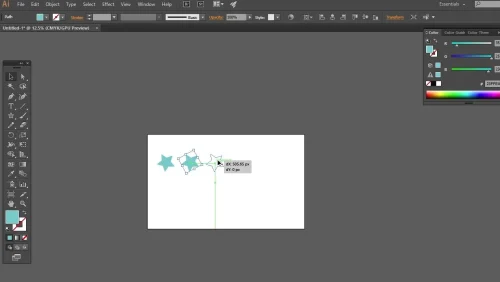
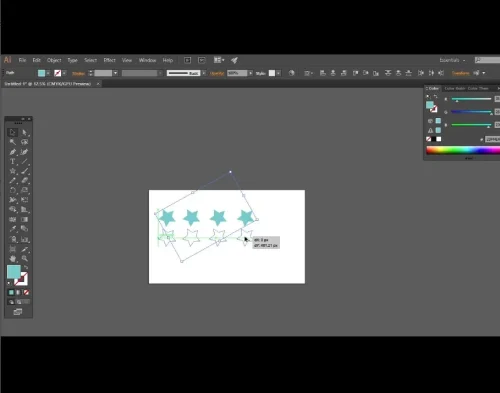
Step 4: To repeat this action and quickly duplicate more, use Control+D or Command+D on Mac. A new copy appears every time. To make it move straight, click Shift+Alt+Drag.
Option 2: Duplicate in Illustrator with Copy and Paste
Alternatively, you can use your Illustrator navigation menu. After creating the artboard and text or shape element, follow the below steps.
Step 1: Select the element you want to duplicate.
Step 2: Go to Edit>Copy or Control+C on PC or Command+C on Mac.
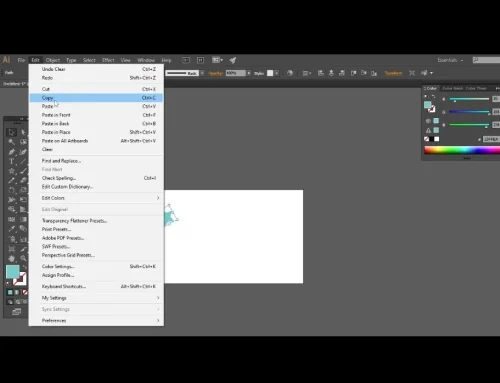
Step 3: Go to Edit>Paste, Paste in Front, Paste in Back or Paste in Place.
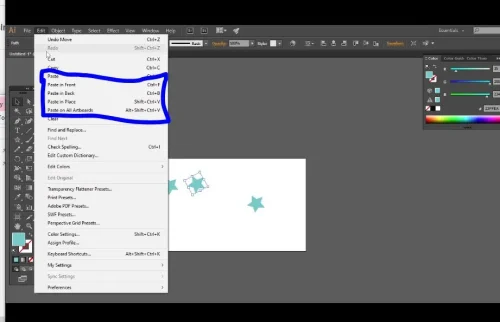
You can use the below shortcuts to paste, respectively.
- Paste – Control+V on PC or Command+V on Mac
- Paste in front – Control + F on PC or Command + F on Mac
- Paste in Back – Control + B on PC or Command + B on Mac
- Paste in place – Shift+Control+F on PC or Shift+Command+F on Mac
Option 3: Duplicate using Layer Panel
Step 1: Add an object in a layer.
Step 2: Go to Window>Layer.
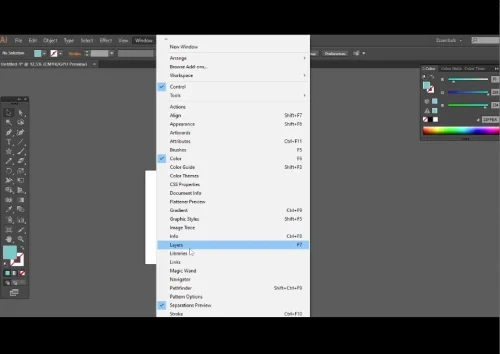
Step 3: Choose the layer with the object.
Step 4: Click the 3 lines on the top right of the layers panel and choose Duplicate layer.
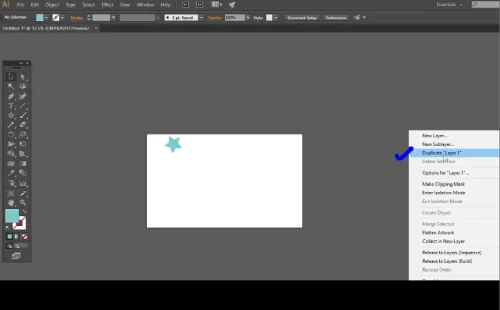
Step 5: Select the duplicated object using the Selection Tool (V), then drag it to see both.
Option 4: Drag Layer to New Layer Icon
Step 1: Select the layer with the object to duplicate.
Step 2: Click and drag to the new layer icon below.
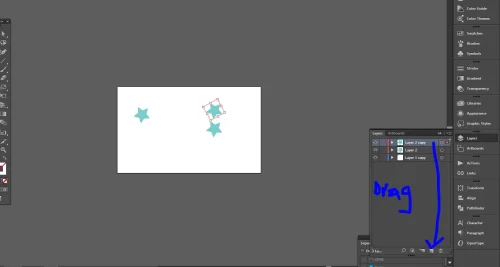
Step 3: Select the duplicated object using the Selection Tool (V), then drag it to see both.
Conclusion
Understanding different ways to duplicate objects in Illustrator helps you speed up workflow and design accuracy. You can use it to prepare steps and repeat printing files or design seamless patterns.
Practise the method you find easiest for your needs to use for your project. For more Illustrator tutorials and design tips, check out our complete Adobe Illustrator guides.
Frequently Asked Questions
How can I duplicate an object multiple times in Illustrator?
Use Alt (Option on Mac) while dragging to duplicate, then press Ctrl + D (Cmd + D on Mac) to repeat the action.
What is the fastest way to duplicate in Illustrator?
The fastest way to duplicate is by dragging an object while holding Alt (Option).
Can I duplicate objects across artboards?
Yes, you can. Select the object and choose Copy (Control + C). Go to Layer Panel Window Layer, click on ‘Create Layer’, then click on the top 3 lines and choose ‘Duplicate Layer’. Click Control + V or F to paste in the new layer.